
Mermaid Diagrams in Askimo
Dieser Inhalt ist noch nicht in deiner Sprache verfügbar.
Mermaid Diagrams in Askimo
Section titled “Mermaid Diagrams in Askimo”Askimo supports rendering Mermaid diagrams directly in chat responses. Mermaid is a powerful diagramming and charting tool that uses simple text syntax to create various types of diagrams.
What is Mermaid?
Section titled “What is Mermaid?”Mermaid allows you to create diagrams and visualizations using text and code. It supports many diagram types including:
- Flowcharts - Process flows and decision trees
- Sequence Diagrams - System interactions and workflows
- Class Diagrams - Object-oriented design structures
- State Diagrams - State machines and transitions
- ER Diagrams - Database entity relationships
- Gantt Charts - Project timelines and schedules
- Pie Charts - Data proportions
- And many more!
How Askimo Renders Mermaid Diagrams
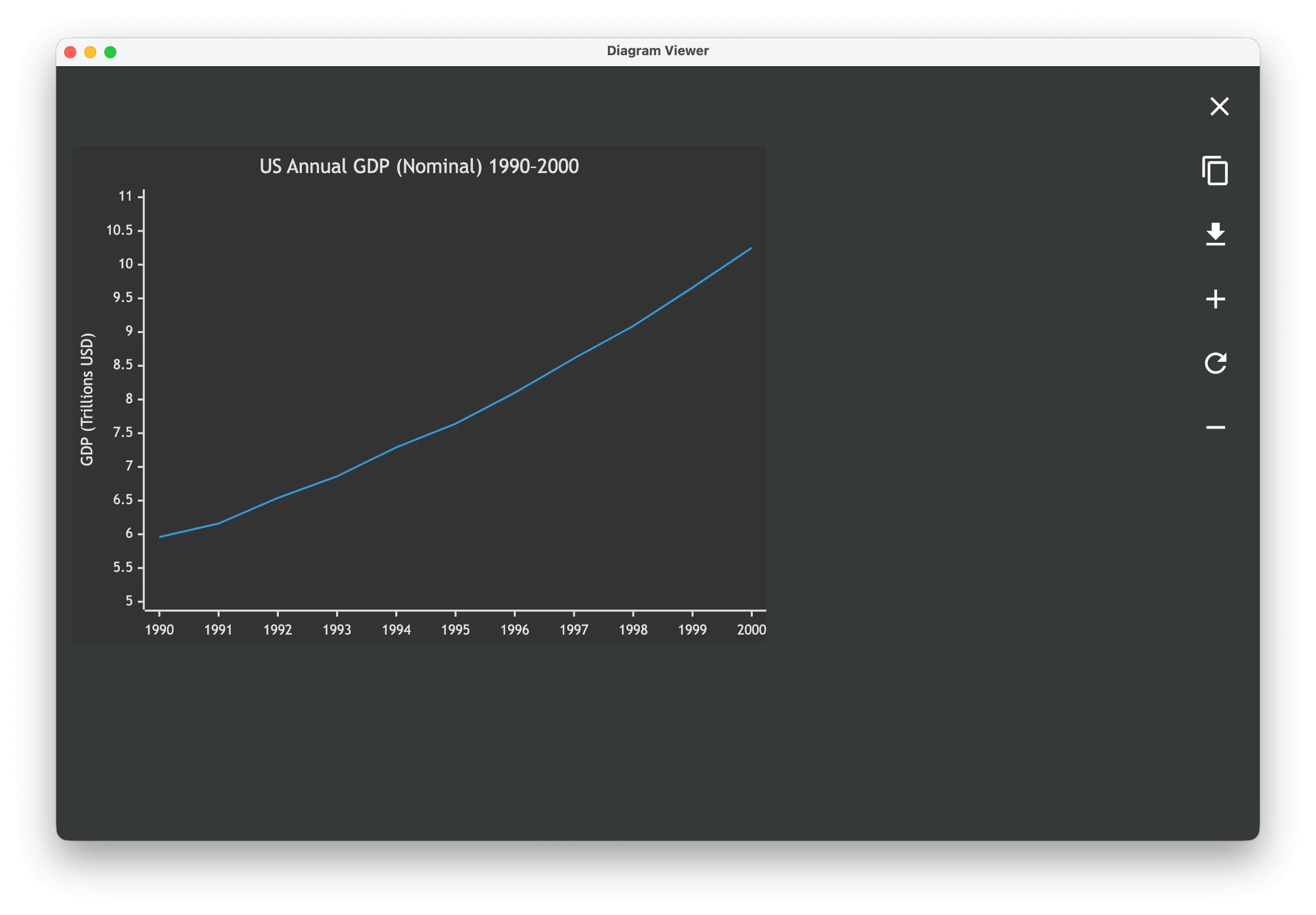
Section titled “How Askimo Renders Mermaid Diagrams”Askimo renders Mermaid diagrams locally on your machine to protect your privacy. When an AI response includes a Mermaid diagram:
- With Mermaid CLI installed: The diagram is rendered as a beautiful, interactive image
- Without Mermaid CLI: The raw Mermaid syntax text is displayed (you can still copy it to use elsewhere)
Prerequisites
Section titled “Prerequisites”To render Mermaid diagrams in Askimo, you need:
- Node.js - JavaScript runtime
- Mermaid CLI - Command-line tool for rendering diagrams
Installation Guide
Section titled “Installation Guide”Step 1: Check if Node.js is Already Installed
Section titled “Step 1: Check if Node.js is Already Installed”Open your terminal and run:
node --versionIf you see a version number (e.g., v20.11.0), Node.js is already installed. Skip to Step 3.
If you see an error like command not found, proceed to Step 2.
Step 2: Install Node.js
Section titled “Step 2: Install Node.js”Option 1: Using Homebrew (Recommended)
# Install Homebrew if you don't have it/bin/bash -c "$(curl -fsSL https://raw.githubusercontent.com/Homebrew/install/HEAD/install.sh)"
# Install Node.jsbrew install node
Option 2: Download Installer
- Visit https://nodejs.org/
- Download the LTS (Long Term Support) version
- Run the installer and follow the prompts
Windows
Section titled “Windows”Option 1: Download Installer (Recommended)
- Visit https://nodejs.org/
- Download the LTS (Long Term Support) version for Windows
- Run the
.msiinstaller - Follow the installation wizard (accept defaults)
Option 2: Using Chocolatey
# Run PowerShell as Administratorchoco install nodejsUbuntu/Debian:
# Using NodeSource repository (recommended for latest version)curl -fsSL https://deb.nodesource.com/setup_lts.x | sudo -E bash -sudo apt-get install -y nodejsFedora/RHEL/CentOS:
# Using NodeSource repositorycurl -fsSL https://rpm.nodesource.com/setup_lts.x | sudo bash -sudo dnf install -y nodejsArch Linux:
sudo pacman -S nodejs npmStep 3: Verify Node.js Installation
Section titled “Step 3: Verify Node.js Installation”After installation, verify Node.js and npm are installed:
node --versionnpm --versionYou should see version numbers for both commands.
Step 4: Install Mermaid CLI
Section titled “Step 4: Install Mermaid CLI”Once Node.js is installed, install Mermaid CLI globally:
npm install -g @mermaid-js/mermaid-cliNote for macOS/Linux users: If you get a permission error, you may need to use sudo:
sudo npm install -g @mermaid-js/mermaid-cliStep 5: Verify Mermaid CLI Installation
Section titled “Step 5: Verify Mermaid CLI Installation”Check that Mermaid CLI is installed correctly:
npx @mermaid-js/mermaid-cli --versionYou should see the Mermaid CLI version number (e.g., 10.6.1).
Step 6: Restart Askimo
Section titled “Step 6: Restart Askimo”After installing Node.js and Mermaid CLI:
- Completely quit Askimo (not just close the window)
- Restart Askimo
- Mermaid diagrams should now render automatically!
Testing Mermaid Rendering
Section titled “Testing Mermaid Rendering”To test if Mermaid diagrams are working in Askimo, try asking the AI:
Can you create a simple flowchart showing how to make coffee?Or:
Create an ER diagram for a simple blog database with users, posts, and commentsIf everything is set up correctly, you should see a beautifully rendered diagram instead of raw text.
Example Mermaid Diagrams
Section titled “Example Mermaid Diagrams”Flowchart Example
Section titled “Flowchart Example”Ask the AI to create diagrams like this:
Prompt: “Create a flowchart for a login process”
flowchart TD
    Start([Start]) --> Input[Enter credentials]
    Input --> Validate{Valid credentials?}
    Validate -->|Yes| Success[Login successful]
    Validate -->|No| Retry{Retry < 3?}
    Retry -->|Yes| Input
    Retry -->|No| Lock[Account locked]
    Success --> End([End])
    Lock --> End
Sequence Diagram Example
Section titled “Sequence Diagram Example”Prompt: “Create a sequence diagram for a REST API call”
sequenceDiagram
    participant User
    participant Browser
    participant API
    participant Database

    User->>Browser: Click button
    Browser->>API: POST /api/data
    API->>Database: Query data
    Database-->>API: Return results
    API-->>Browser: JSON response
    Browser-->>User: Display results
ER Diagram Example
Section titled “ER Diagram Example”Prompt: “Create an ER diagram for an e-commerce database”
erDiagram
    Customer ||--o{ Order : places
    Order ||--o{ OrderItem : contains
    Product ||--o{ OrderItem : "ordered in"

    Customer {
        int id PK
        string name
        string email
    }

    Order {
        int id PK
        date order_date
        int customer_id FK
    }

    Product {
        int id PK
        string name
        decimal price
    }

    OrderItem {
        int id PK
        int order_id FK
        int product_id FK
        int quantity
    }
Troubleshooting
Section titled “Troubleshooting”Diagrams Not Rendering
Section titled “Diagrams Not Rendering”If diagrams appear as text instead of images:
-
Check Node.js installation:
Terminal window node --version -
Check Mermaid CLI installation:
Terminal window npx @mermaid-js/mermaid-cli --version -
Restart Askimo completely (quit and reopen)
-
Check PATH environment variable:
- On macOS/Linux: Ensure
/usr/local/binis in your PATH - On Windows: Ensure npm global bin directory is in your PATH
- On macOS/Linux: Ensure
Permission Errors on macOS/Linux
Section titled “Permission Errors on macOS/Linux”If you get EACCES permission errors when installing Mermaid CLI:
Option 1: Use sudo (Quick fix)
sudo npm install -g @mermaid-js/mermaid-cliOption 2: Fix npm permissions (Better long-term solution)
# Create a directory for global installationsmkdir ~/.npm-global
# Configure npm to use the new directorynpm config set prefix '~/.npm-global'
# Add to your PATH (add this line to ~/.bashrc or ~/.zshrc)export PATH=~/.npm-global/bin:$PATH
# Reload your shell configurationsource ~/.bashrc  # or source ~/.zshrc
# Now install without sudonpm install -g @mermaid-js/mermaid-cli
Mermaid CLI Not Found After Installation
Section titled “Mermaid CLI Not Found After Installation”If the installation succeeded but Askimo can’t find the CLI:
-
Find where npm installs global packages:
Terminal window npm config get prefix -
Ensure that directory’s
binfolder is in your PATH -
Restart your terminal and Askimo
Still Having Issues?
Section titled “Still Having Issues?”If you’re still experiencing problems:
- Check the Askimo logs (Settings → Advanced → View Logs)
- Look for error messages related to “Mermaid” or “Node.js”
- Report the issue on Askimo’s GitHub repository
Privacy & Security
Section titled “Privacy & Security”Askimo renders Mermaid diagrams locally on your computer using the Mermaid CLI. This means:
- ✅ Your diagrams never leave your machine
- ✅ No external services are used
- ✅ Complete privacy and security
- ✅ Works offline (after installation)
This is different from many other tools that render diagrams on remote servers.
Advanced Usage
Section titled “Advanced Usage”Customizing Diagram Themes
Section titled “Customizing Diagram Themes”Mermaid diagrams in Askimo automatically adapt to your theme (light/dark mode). The AI can also specify custom themes in the diagram syntax.
Copying Diagrams
Section titled “Copying Diagrams”Even if you don’t have Mermaid CLI installed, you can:
- Copy the raw Mermaid syntax from the chat
- Paste it into online Mermaid editors like Mermaid Live Editor
- Export as image or SVG
Asking for Specific Diagram Types
Section titled “Asking for Specific Diagram Types”Be specific in your prompts to get the diagram type you want:
- “Create a flowchart showing…”
- “Make a sequence diagram for…”
- “Draw an ER diagram representing…”
- “Generate a Gantt chart for…”
- “Create a class diagram with…”
Learn More About Mermaid
Section titled “Learn More About Mermaid”- Official Mermaid Documentation
- Mermaid Live Editor - Interactive online editor
- Mermaid Cheat Sheet
Summary
Section titled “Summary”- Install Node.js from nodejs.org
- Install Mermaid CLI:
npm install -g @mermaid-js/mermaid-cli - Restart Askimo
- Ask AI to create diagrams and enjoy beautiful visualizations!
For questions or issues, visit the GitHub repository.