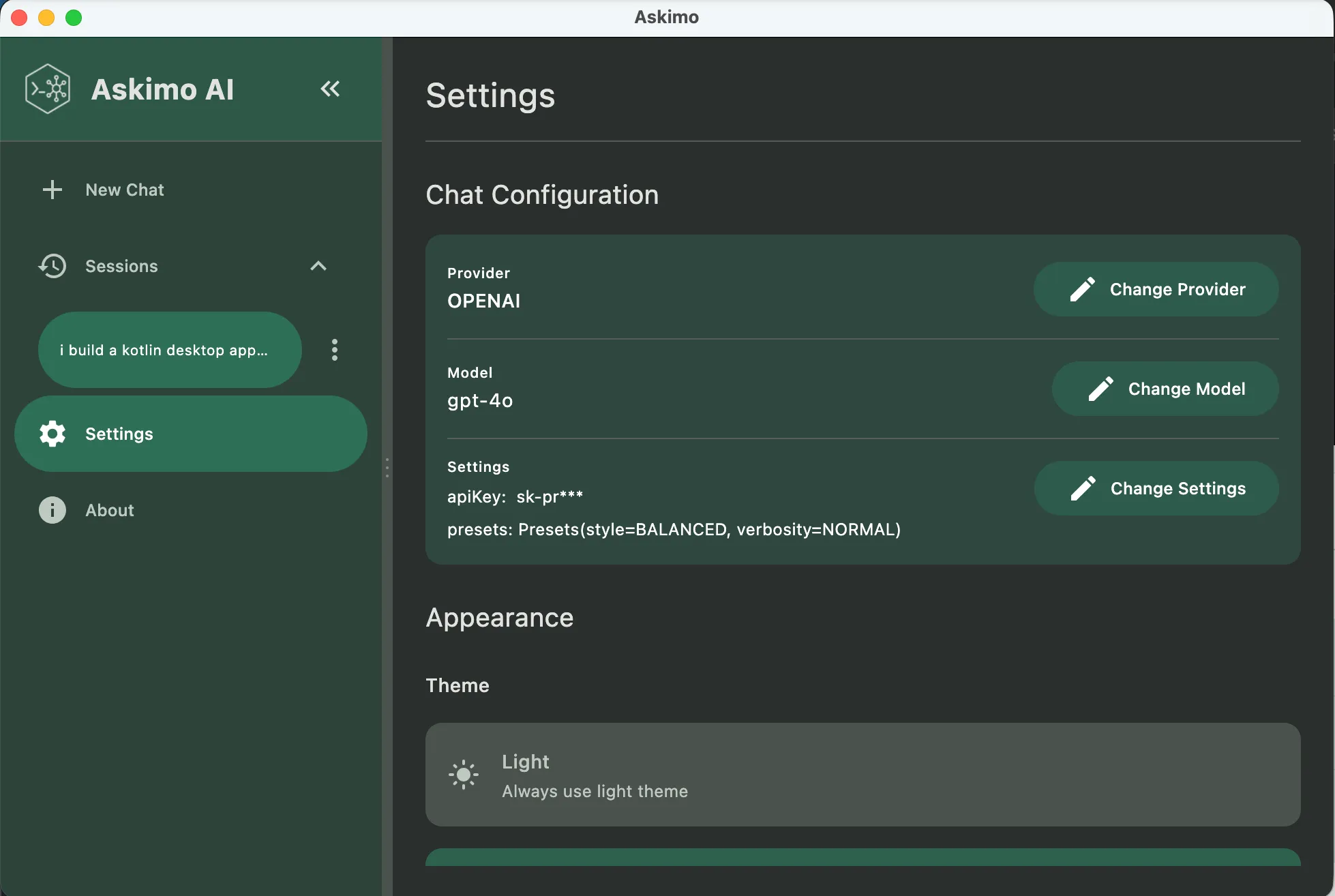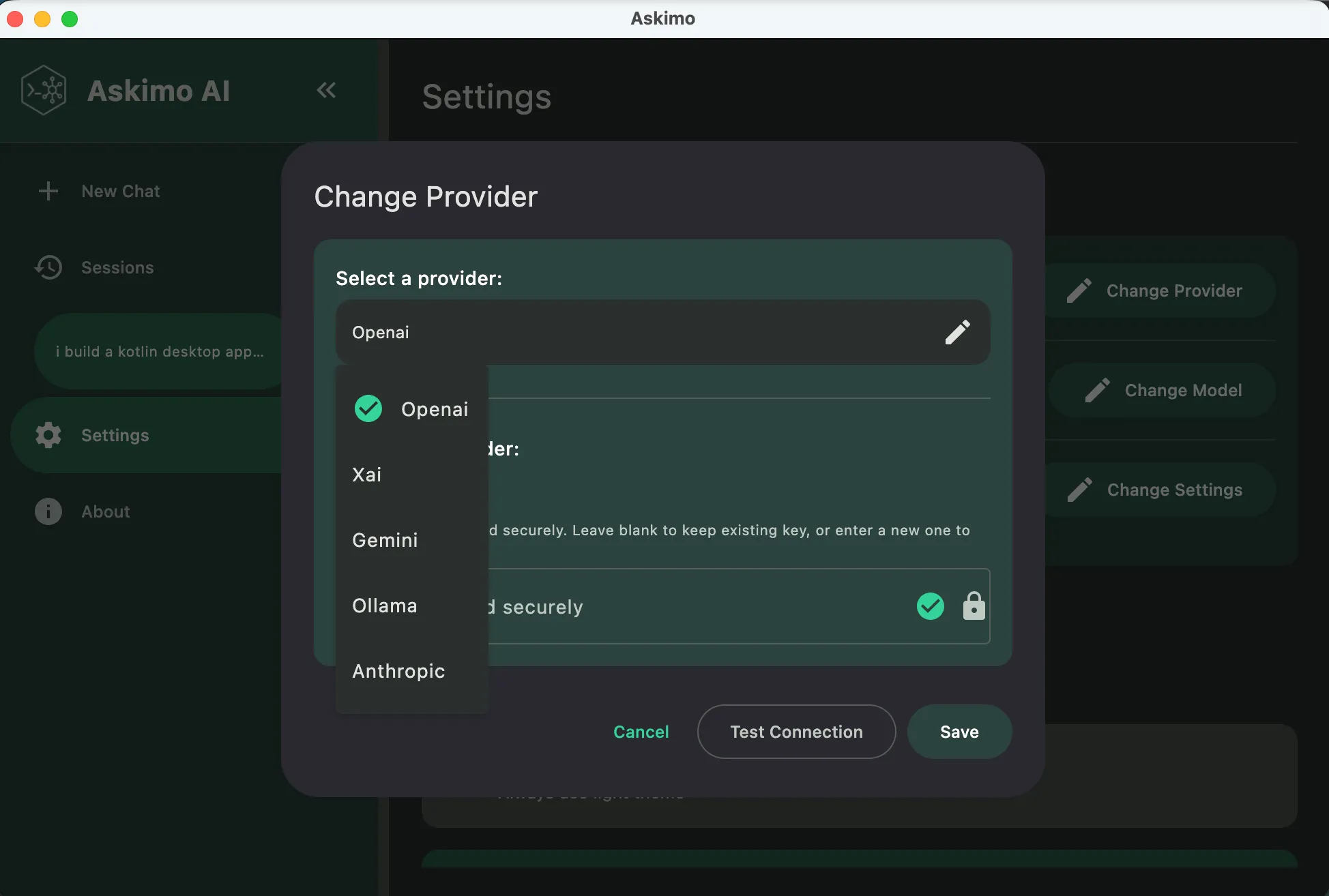

Setup & Configuration
Welcome to Askimo Desktop! This guide will help you set up the application and configure AI providers including OpenAI, Anthropic Claude, Google Gemini, xAI, and local models via Ollama.
First Launch
Section titled “First Launch”After installing Askimo Desktop, launch the application. On first run, you’ll need to configure your AI provider to start using the app.
Quick Start Checklist
Section titled “Quick Start Checklist”- ✅ Launch Askimo Desktop
- ✅ Choose an AI provider
- ✅ Configure API key or local server
- ✅ Test connection
- ✅ Start your first conversation
Accessing Provider Settings
Section titled “Accessing Provider Settings”
From Menu
Section titled “From Menu”- Click on the menu bar
- Select “Settings”
- Navigate to the “AI Providers” tab
Keyboard Shortcut
Section titled “Keyboard Shortcut”- macOS:
⌘ + ,then click “AI Providers” - Windows/Linux:
Ctrl + ,then click “AI Providers”
Configuring AI Providers
Section titled “Configuring AI Providers”
API Configuration
Section titled “API Configuration”- API Key: Your OpenAI API key (required)
- Get your key from platform.openai.com/api-keys
- Organization ID: (Optional) For team accounts
- Default Model: Choose from:
gpt-4o- Most capable, multimodalgpt-4o-mini- Fast and affordablegpt-3.5-turbo- Legacy, cost-effective
- Base URL: (Advanced) Custom endpoint for proxies
- Default:
https://api.openai.com/v1
- Default:
- Timeout: Request timeout in seconds (default: 60s)
Setting Up Your API Key
Section titled “Setting Up Your API Key”- Visit OpenAI Platform
- Sign in or create an account
- Click “Create new secret key”
- Copy the key (you won’t see it again!)
- Paste it into Askimo’s OpenAI API Key field
- Click “Test Connection” to verify
API Configuration
Section titled “API Configuration”- API Key: Your Anthropic API key (required)
- Get your key from console.anthropic.com
- Default Model: Choose from:
claude-3-5-sonnet-20241022- Most capable, balancedclaude-3-5-haiku-20241022- Fast and efficient
- API Version: API version (default: 2023-06-01)
- Timeout: Request timeout in seconds (default: 60s)
Setting Up Your API Key
Section titled “Setting Up Your API Key”- Visit Anthropic Console
- Sign in or create an account
- Navigate to “API Keys”
- Click “Create Key”
- Copy the key
- Paste it into Askimo’s Claude API Key field
- Click “Test Connection” to verify
API Configuration
Section titled “API Configuration”- API Key: Your Google AI API key (required)
- Get your key from aistudio.google.com/app/apikey
- Default Model: Choose from:
gemini-2.0-flash-exp- Latest experimental modelgemini-1.5-pro- Most capable, multimodalgemini-1.5-flash- Fast and efficient
- Region: Select closest region for better latency
- Auto (default), US, Europe, Asia
- Timeout: Request timeout in seconds (default: 60s)
Setting Up Your API Key
Section titled “Setting Up Your API Key”- Visit Google AI Studio
- Sign in with your Google account
- Click “Create API Key”
- Copy the generated key
- Paste it into Askimo’s Gemini API Key field
- Click “Test Connection” to verify
API Configuration
Section titled “API Configuration”- API Key: Your xAI API key (required)
- Get your key from console.x.ai
- Default Model: Choose from:
grok-2-latest- Latest Grok modelgrok-2-vision-latest- Multimodal capabilities
- Timeout: Request timeout in seconds (default: 60s)
Setting Up Your API Key
Section titled “Setting Up Your API Key”- Visit xAI Console
- Sign in with your account
- Navigate to API Keys
- Create a new API key
- Copy the key
- Paste it into Askimo’s xAI API Key field
- Click “Test Connection” to verify
Server Configuration
Section titled “Server Configuration”- Server URL: Ollama server endpoint
- Default:
http://localhost:11434 - For remote servers:
http://your-server:11434
- Default:
- Timeout: Connection timeout (default: 120s)
- Auto-pull Models: Automatically download models when selected
- Available Models: Detected automatically from your Ollama installation
Setting Up Ollama
Section titled “Setting Up Ollama”- Install Ollama from ollama.ai
- Start the Ollama service
- Pull a model:
ollama pull llama2 - Askimo will automatically detect your local Ollama server
- Select a model from the dropdown
- Click “Test Connection” to verify
Installing Models
Section titled “Installing Models”Popular models you can use with Ollama:
- llama2 - Meta’s Llama 2 model
- mistral - Mistral 7B
- codellama - Code-specialized Llama
- phi - Microsoft’s Phi model
Install any model via terminal:
ollama pull mistralYour First Conversation
Section titled “Your First Conversation”Once you’ve configured at least one provider, you’re ready to start!
Starting a Chat
Section titled “Starting a Chat”- Click “New Chat” or press
⌘/Ctrl + N - Type your first message in the input area
- Press
Enterto send
Example Prompts to Try
Section titled “Example Prompts to Try”General Questions:
Give me ideas for the trip to San Francisco next weekCode Assistance:
Can you help me write a Python function to calculate fibonacci numbers?Writing Help:
Help me write a professional email to request time offDevOps Tasks:
Explain how to set up a CI/CD pipeline with GitHub Actions