

Askimo App Features & Workflows
Discover Askimo App’s powerful features that help you chat with AI providers, control AI behavior with custom directives, search conversations, and manage your chat history effectively.
Start a Chat
Section titled “Start a Chat”Begin conversations with any configured AI provider.
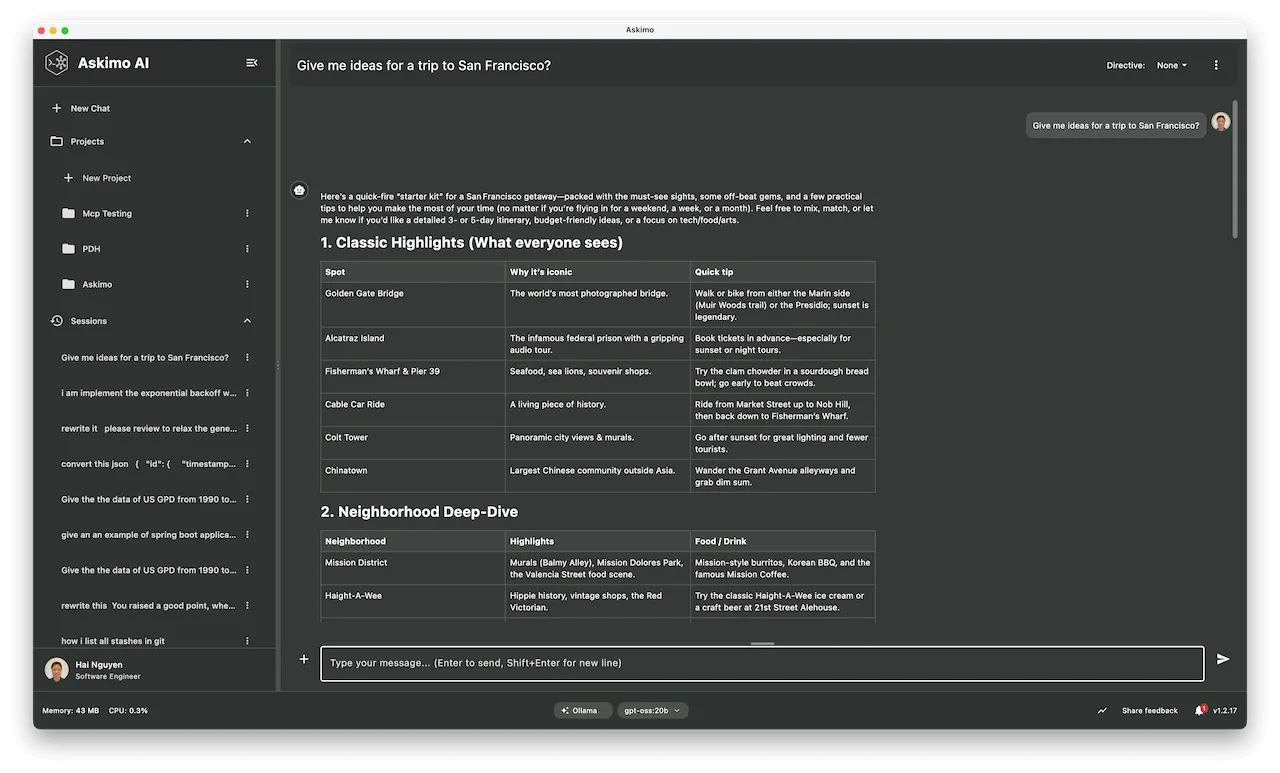
Creating a New Chat
Section titled “Creating a New Chat”Quick Start:
- Click the ”+” button in the sidebar
- Select your AI provider (OpenAI, Claude, Gemini, xAI, Ollama)
- Choose a model (if multiple are available)
- Start typing your message
Keyboard Shortcut:
- macOS:
⌘ + N - Windows/Linux:
Ctrl + N
Search in a Conversation
Section titled “Search in a Conversation”Find specific messages within your current chat conversation quickly and efficiently.
Using In-Chat Search
Section titled “Using In-Chat Search”Opening Search:
- macOS:
⌘ + F - Windows/Linux:
Ctrl + F - Or click the search icon in the chat header
Search Features:
- Text Search: Find any keyword or phrase in the conversation
- Case Sensitive: Toggle for exact case matching
- Navigate Results: Jump between matches with next/previous buttons
- Highlight Matches: All matching text is highlighted in the conversation
Search Navigation:
- Open search with
⌘/Ctrl + F - Type your search query
- Press
Escto close search
Create Custom Directives
Section titled “Create Custom Directives”Control AI behavior with custom instructions that shape how the AI responds to your prompts.
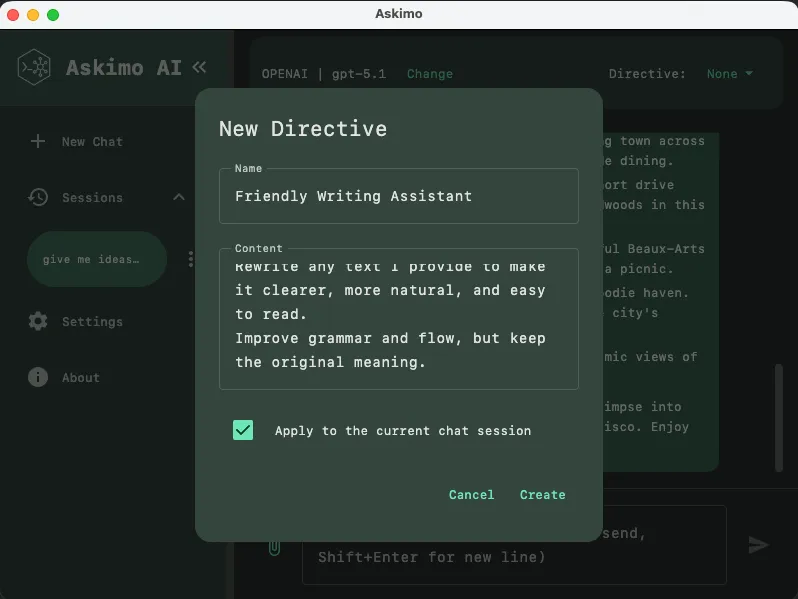
What are Custom Directives?
Section titled “What are Custom Directives?”Custom directives (also called system prompts) are instructions that tell the AI how to respond. They run before every message and shape the AI’s personality, format, and behavior.
Creating and Managing Directives
Section titled “Creating and Managing Directives”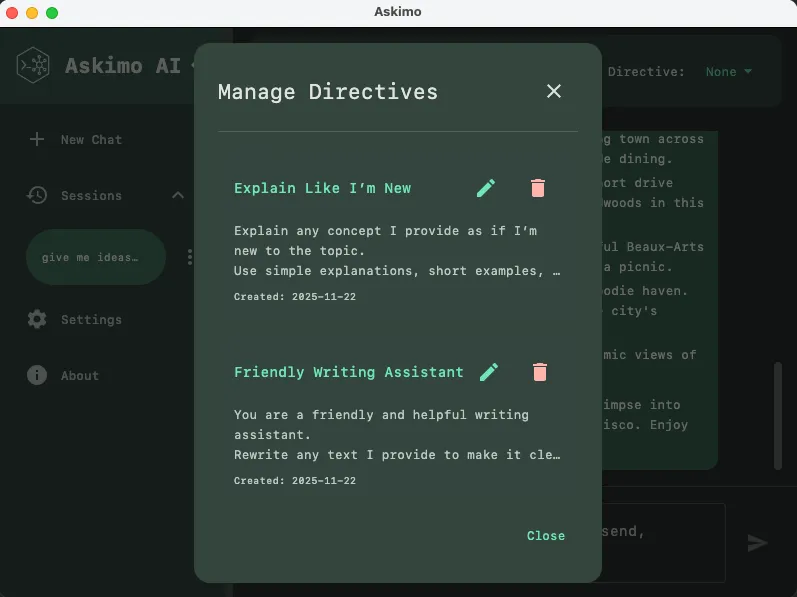
- Open a chat conversation
- Click the directive dropdown in the chat header
- Select a directive from your list
- The AI will follow those instructions for that conversation
Directive Examples
Section titled “Directive Examples”Professional Tone:
Always respond in a professional, concise manner.Use formal language and avoid casual expressions.Developer Assistant:
You are an expert software developer. Always:- Provide complete, working code examples- Include error handling- Add comments explaining complex logic- Suggest best practicesWriting Coach:
You are a writing coach. For all writing requests:- Provide constructive feedback- Suggest improvements for clarity and flow- Point out grammar issues- Maintain an encouraging toneOutput Format Control
Section titled “Output Format Control”Control how the AI structures its responses.
Structured Output Example:
For all code-related questions, use this format:
## Solution[Your code here]
## Explanation[Brief explanation]
## Usage Example[How to use the code]
## Considerations[Edge cases, performance notes]
Step-by-Step Format:
Always break down solutions into numbered steps:
1. First step with explanation2. Second step with explanation...Finally: Summary or conclusion
Best Practices for Writing Directives
Section titled “Best Practices for Writing Directives”Be Specific and Clear:
- State exactly what you want the AI to do
- Avoid vague or ambiguous instructions
- Use concrete examples when possible
Use Bullet Points:
- Break down multiple instructions into bullet points
- Makes it easier for AI to follow multiple requirements
- Improves consistency across responses
Test and Iterate:
- Test directives with various prompts to ensure consistency
- Compare responses with and without the directive
- Fine-tune based on actual results
Start Simple:
- Begin with basic instructions
- Add complexity gradually as needed
- Avoid overly long or complex directives initially
Include Format Examples:
- Provide examples of desired output format
- Show structure for how responses should be organized
- Use templates for consistent formatting
Review and Refine:
- Monitor AI responses over time
- Adjust directives based on results
- Remove instructions that don’t improve responses
Star a Chat Session
Section titled “Star a Chat Session”Star your favorite chat sessions for quick access. Starred chats stay at the top of your chat list.
How to Star:
- Right-click on a chat in the sidebar
- Select “Star Chat”
- Starred chats will appear at the top for quick access
How to Unstar:
- Right-click on a starred chat
- Select “Unstar Chat”
Export a Chat Session
Section titled “Export a Chat Session”Export your conversations to Markdown format for backup, sharing, or documentation.
How to Export:
- Right-click on a chat in the sidebar
- Select “Export to Markdown”
- Choose a location and save as a
.mdfile
The exported file preserves all formatting, code blocks, timestamps, and conversation metadata.
Delete a Chat Session
Section titled “Delete a Chat Session”Remove conversations you no longer need to keep your workspace organized.
Deleting a Chat
Section titled “Deleting a Chat”From Sidebar:
- Right-click on the chat you want to delete
- Select “Delete”
- Confirm deletion