RAG - Retrieval-Augmented Generation
Esta página aún no está disponible en tu idioma.
Askimo App includes powerful RAG (Retrieval-Augmented Generation) capabilities that allow you to create project-based knowledge bases. Whether you’re a developer working with code, a writer managing documents, or a researcher organizing data, Askimo’s Lucene-powered indexing helps your AI conversations access and reference your files automatically.
What is RAG?
Section titled “What is RAG?”RAG (Retrieval-Augmented Generation) enhances AI conversations by:
- Accessing Your Project Files: AI can reference your local documents, code, research papers, or any other files
- Accurate Responses: Answers are grounded in your actual content, not just the AI’s training data
- Privacy-First: All indexing and retrieval happens locally on your machine
- Fast Search: Lucene-powered indexing provides lightning-fast retrieval across thousands of files
How RAG Works in Askimo
Section titled “How RAG Works in Askimo”Here’s how Askimo processes and retrieves information from your project files:
graph TB
    subgraph "1. Ingestion Process"
        A[Project Files] --> B[File Parser]
        B --> C{File Type Detection}
        C -->|Code| D[Code Parser]
        C -->|PDF| E[PDF Text Extractor]
        C -->|Office Docs| F[Office Parser]
        C -->|Text/Markdown| G[Text Parser]
        D --> H[Text Chunks]
        E --> H
        F --> H
        G --> H
    end

    subgraph "2. Indexing & Storage"
        H --> I[Document Chunker
256-2048 tokens]
        I --> J[Embedding Generator]
        J --> K[(JVector Store
Vector Embeddings)]
        J --> L[(Lucene Index
Full-Text Search)]
    end

    subgraph "3. Query & Retrieval"
        M[User Query] --> N[Query Embedding]
        N --> O[ContentRetriever]
        O --> K
        O --> L
        K --> P[Vector Similarity Search]
        L --> Q[Keyword Search]
        P --> R[Top-K Results]
        Q --> R
    end

    subgraph "4. Context Injection"
        R --> S[ContentInjector]
        S --> T[Rank & Filter Results]
        T --> U[Context Window Manager]
        U --> V[Inject into AI Prompt]
        V --> W[AI Model]
        W --> X[Enhanced Response]
    end

    style K fill:#e1f5ff
    style L fill:#e1f5ff
    style O fill:#fff4e6
    style S fill:#f3e8ff
    style W fill:#e8f5e9
The Process:
- Ingestion: Files are parsed based on their type (code, PDF, Office docs, text)
- Indexing: Content is split into chunks, embedded as vectors (JVector), and indexed for full-text search (Lucene)
- Retrieval: When you ask a question, ContentRetriever searches both vector embeddings and full-text index
- Injection: ContentInjector ranks results, manages context window, and injects relevant chunks into your AI conversation
All of this happens locally on your machine—no data ever leaves your computer.
Creating a Project with RAG
Section titled “Creating a Project with RAG”Step 1: Create a New Project
Section titled “Step 1: Create a New Project”-
Open Project Manager
- Click the “Projects” icon in the sidebar
- Or use keyboard shortcut:
⌘/Ctrl + P
-
Create New Project
- Click ”+ New Project” button
- Enter a project name (e.g., “My Web App”, “Research Papers”, “Novel Draft”, “Marketing Documents”)
- Optionally add a description
-
Select Project Directory
- Click “Select Folder” to choose the project root directory
- This directory and its subdirectories will be indexed automatically
Step 2: Automatic Indexing
Section titled “Step 2: Automatic Indexing”Indexing starts automatically when you create a project:
- Askimo detects the project type (Gradle, Maven, Python, Node.js, etc.)
- Indexing begins immediately in the background
- Monitor indexing progress in the status bar
- Wait for indexing to complete (typically 10-60 seconds depending on project size)
What Gets Indexed:
Askimo automatically indexes:
- All text-based source files
- PDF files (text content extracted)
- Microsoft Office documents (.docx, .xlsx, .pptx)
- OpenOffice documents (.odt, .ods, .odp)
- Email files (.eml, .msg)
- Documentation files (.md, .txt, .rst, etc.)
- Configuration files (.json, .yaml, .xml, etc.)
What Gets Excluded:
Askimo intelligently excludes:
- Common build artifacts (build/, dist/, target/, .gradle/, etc.)
- Dependencies (node_modules/, vendor/, venv/, etc.)
- Files listed in
.gitignore - Binary files (except supported document types)
- Files larger than 5 MB
- IDE-specific directories (.idea/, .vscode/, etc.)
Using RAG in Chat Sessions
Section titled “Using RAG in Chat Sessions”Creating a New Chat in a Project
Section titled “Creating a New Chat in a Project”When you create a chat session within a project, RAG is automatically enabled to provide context from your indexed files.
-
Navigate to Your Project
- Open the project in the sidebar
- Your indexed project is ready to use
-
Start a New Chat
- Click the ”+” button within the project
- Or use
⌘/Ctrl + Nwhile in project view
-
Chat with Context
- RAG is enabled by default - no need to toggle!
- The AI automatically retrieves relevant context from your indexed files
- A small indicator shows which project’s knowledge is active
Example Queries
Section titled “Example Queries”With RAG enabled, you can ask questions about your project:
For Developers:
- “What’s the purpose of the UserService class in this project?”
- “Show me all REST endpoints defined in the API controllers”
- “Explain the authentication flow used in this application”
- “How is error handling implemented across the codebase?”
- “What dependencies are used for database access?”
- “List all database models and their relationships”
For Writers & Content Creators:
- “Summarize the main topics covered in my documentation”
- “Find all mentions of pricing in my marketing documents”
- “What blog posts have I written about AI?”
- “Create an outline based on my research notes”
- “List all the characters mentioned in my story drafts”
For Researchers & Analysts:
- “What are the key findings in my research papers?”
- “Find all references to climate change in these PDFs”
- “Summarize the data from my Excel spreadsheets”
- “What patterns appear across my interview transcripts?”
- “Compare the methodology sections in my documents”
For Business & Project Managers:
- “What are the open action items from our meeting notes?”
- “Summarize the quarterly reports from last year”
- “Find all client feedback mentions in our emails”
- “What are the main risks mentioned in our project documentation?”
- “List all deliverables mentioned in our proposals”
Moving Existing Chats to Projects
Section titled “Moving Existing Chats to Projects”You can organize existing chat sessions by moving them into projects. Once moved, RAG is automatically enabled.
-
Select Chat Session
- Find the chat you want to move in the sidebar
-
Move to Project
- Right-click the chat in the sidebar
- Select “Move to Project”
- Choose the target project
-
RAG Automatically Enabled
- Once moved, RAG is automatically enabled for this chat
- The AI now has access to the project’s knowledge base
- The chat will use the project’s indexed files for context
Managing RAG Index
Section titled “Managing RAG Index”Re-indexing the Project
Section titled “Re-indexing the Project”When you make significant changes to your project:
- Open the project settings
- Click “Re-index Project”
- Wait for indexing to complete
When to Re-index:
- After major code refactoring
- When adding/removing large numbers of files
- If search results seem outdated
Incremental Updates
Section titled “Incremental Updates”Askimo automatically detects file changes and updates the index:
- File Modified: Re-indexes the changed file
- File Added: Indexes the new file
- File Deleted: Removes from index
Index Storage
Section titled “Index Storage”RAG indexes are stored locally:
- Location:
~/.askimo/projects/<project-id>/index/ - Size: Typically 10-30% of your source files
- Format: Lucene index format
Embedding Model Configuration
Section titled “Embedding Model Configuration”RAG (Retrieval-Augmented Generation) relies on embedding models to convert your documents and queries into vector representations. These embeddings enable semantic search, allowing the AI to find relevant content based on meaning rather than just keyword matching.
Why Embedding Models Matter
Section titled “Why Embedding Models Matter”When you create a project with RAG:
- Document Ingestion: Your files are split into chunks and converted into numerical vectors (embeddings) using an embedding model
- Semantic Search: When you ask a question, your query is also converted into an embedding
- Similarity Matching: The system finds the most semantically similar document chunks by comparing vector embeddings
- Context Injection: Relevant chunks are injected into the AI’s context window to generate accurate, grounded responses
The quality and compatibility of the embedding model directly impact RAG’s ability to retrieve relevant information from your project files.
Default Embedding Models by Provider
Section titled “Default Embedding Models by Provider”Askimo uses different default embedding models depending on your AI provider. These are just defaults—you can customize them in Settings if you prefer different models.
| Provider | Default Embedding Model |
|---|---|
| OpenAI | text-embedding-3-small |
| Google Gemini | text-embedding-004 |
| Ollama | nomic-embed-text:latest |
| LM Studio | nomic-embed-text:latest |
| LocalAI | nomic-embed-text:latest |
| Docker AI | ai/qwen3-embedding:0.6B-F16 |
Setting Up Local Embedding Models
Section titled “Setting Up Local Embedding Models”For local AI providers (Ollama, LM Studio, LocalAI, Docker AI), you must manually pull the embedding model before using RAG:
For Ollama:
ollama pull nomic-embed-text:latestFor LM Studio:
- Open LM Studio
- Search for “nomic-embed-text”
- Download the model
For LocalAI:
# Pull the model using LocalAI's CLI or APIcurl http://localhost:8080/models/apply -H "Content-Type: application/json" -d '{ "id": "nomic-embed-text:latest"}'For Docker AI:
# Pull the Qwen embedding modeldocker exec -it <container-name> pull ai/qwen3-embedding:0.6B-F16Customizing Embedding Models
Section titled “Customizing Embedding Models”You can change the default embedding model for any provider:
-
Open Settings
- Go to Settings (⌘/Ctrl + ,)
-
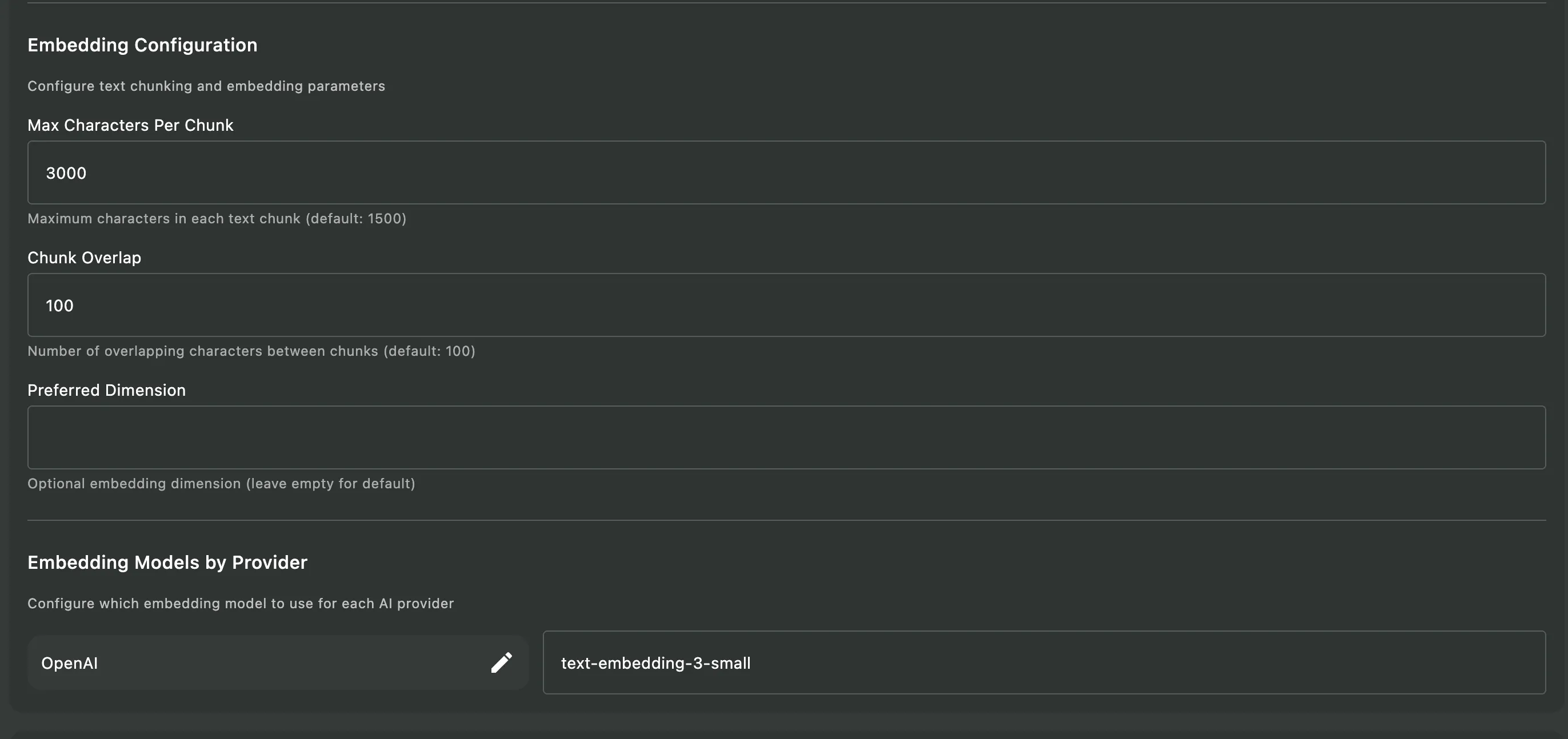
Navigate to RAG Configuration
- Select Advanced tab
- Find RAG Configuration
- Find Embedding Models by Provider
-
Configure Provider Models
- Enter the model name for each provider
- For cloud providers (OpenAI, Gemini): Use the official model identifier
- For local providers: Ensure the model is already pulled/downloaded
Example Custom Configuration:
| Provider | Custom Model |
|---|---|
| OpenAI | text-embedding-3-large (higher quality, larger) |
| Gemini | text-embedding-004 (default) |
| Ollama | mxbai-embed-large:latest (alternative local model) |
Verifying Your Embedding Model
Section titled “Verifying Your Embedding Model”Askimo automatically validates your embedding model when you:
- Create a new RAG project, or
- Re-index an existing project (right-click project > “Re-index Project”)
During the indexing process, Askimo will check if the configured embedding model is available and valid. If the embedding model is invalid or unavailable, you’ll receive a clear error notification indicating the issue.
Common validation errors:
- Local providers (Ollama, LM Studio, LocalAI, Docker AI): Model not downloaded/pulled
- Cloud providers (OpenAI, Gemini): Invalid API key or model name
- Anthropic/X.AI users: No embedding model configured (these providers don’t offer embedding APIs)
If you encounter an embedding model error:
- Review the error message to identify the specific issue
- For local providers: Make sure you’ve manually pulled the embedding model (see “Setting Up Local Embedding Models” above)
- For cloud providers: Verify your API key is valid and the model name is correct
- Re-attempt indexing: After fixing the issue, try creating a new project or re-indexing your existing project
- Still having issues? Post a detailed issue report on the Askimo GitHub Issues page including:
- Your AI provider
- The embedding model name you’re using
- The exact error message
- Your operating system
Supported File Types
Section titled “Supported File Types”Askimo can index a wide variety of file types:
Source Code Files:
.java,.kt,.js,.ts,.jsx,.tsx.py,.rb,.go,.rs,.c,.cpp,.h,.hpp.cs,.php,.swift,.scala,.clj.sql,.sh,.bash,.ps1
Documentation Files:
.md,.mdx,.txt,.rst,.adoc,.org- PDF files (text content extracted)
Office Documents:
- Microsoft Office:
.docx,.xlsx,.pptx,.doc,.xls,.ppt - OpenOffice:
.odt,.ods,.odp
Email Files:
.eml,.msg
Configuration & Data Files:
.json,.yaml,.yml,.toml,.ini.xml,.csv,.properties
Build & Project Files:
pom.xml,build.gradle,package.json,requirements.txtCargo.toml,go.mod,composer.json
Automatically Detected Project Types:
- Java: Maven (
pom.xml), Gradle (build.gradle,settings.gradle) - JavaScript/TypeScript: Node.js (
package.json), npm, yarn, pnpm - Python: pip (
requirements.txt), Poetry (pyproject.toml), virtualenv - Go: Go modules (
go.mod,go.sum) - Rust: Cargo (
Cargo.toml) - PHP: Composer (
composer.json) - Ruby: Bundler (
Gemfile) - .NET: NuGet, MSBuild projects
Privacy & Security
Section titled “Privacy & Security”Local-Only Processing
Section titled “Local-Only Processing”All RAG operations happen locally on your machine:
- No Data Upload: Your code never leaves your computer
- No Cloud Dependencies: Works completely offline
- Secure Storage: Indexes stored in your local Askimo directory