

AI Model Configuration
Ce contenu n’est pas encore disponible dans votre langue.
When you send a message in Askimo, it might feel like a single AI model is handling everything - but that is not the case. Behind the scenes, Askimo uses several specialized models simultaneously, each optimised for a different job. The model you pick in the main chat settings is only one of them.
Think of it like a team at a company: there is a senior consultant (your main chat model) who handles the deep thinking, and a set of fast specialists who handle smaller jobs in the background - like filing paperwork, reviewing photos, or searching the knowledge base - without consuming the senior consultant’s time or budget.
Askimo ships with sensible defaults for every provider so things work out of the box. But you can override each model independently to match your own priorities - whether that is lower cost, faster responses, higher accuracy, or complete local privacy.
Why Multiple Models?
Section titled “Why Multiple Models?”Different tasks call for very different model characteristics:
| Model Type | What it does | Why a dedicated model helps |
|---|---|---|
| Main Chat Model | Answers your questions, reasons, writes code | You choose this in the main provider settings |
| Utility Model | Fast background tasks - generating a chat title, detecting your intent, routing to the right tool | A small, cheap model is 10–100× faster and costs a fraction of the main model |
| Vision Model | Understands images you attach to a conversation | Must support multimodal input; may differ from the chat model |
| Image Model | Generates images from text prompts | Completely separate generation pipeline |
| Embedding Model | Converts text to vectors for semantic search | Powers RAG (Project Knowledge) and MCP tool matching |
A practical example
Section titled “A practical example”Imagine you open Askimo, type a question, and attach a screenshot:
- Utility model quickly reads your message and generates a short chat title in the sidebar.
- Vision model analyses the screenshot you attached.
- Main chat model receives both the text and the image analysis, then writes the full response.
- If you have a project knowledge base open, the embedding model silently searches it for relevant context before the main model replies.
All of this happens in parallel, so you barely notice - but each step uses the model best suited for that job.
Overriding the defaults
Section titled “Overriding the defaults”Askimo’s defaults are chosen to work well for most users, but you may want to change them for reasons like:
- Cost - swap the utility model to the cheapest tier; it only writes short titles, so quality barely matters
- Speed - use a smaller, faster model for vision or utility tasks to reduce overall response time
- Accuracy - use a larger embedding model for more precise RAG results
- Privacy - point all models to a local Ollama instance so no data leaves your machine
Accessing Model Configuration
Section titled “Accessing Model Configuration”- Open Settings (
⌘ ,on macOS /Ctrl ,on Windows/Linux) - Go to the AI Providers tab
- Your active provider’s Model Configuration card appears below the main provider settings
Each field saves automatically when you click away (you’ll see a ✓ checkmark confirm the save).
Model Configuration by Provider
Section titled “Model Configuration by Provider”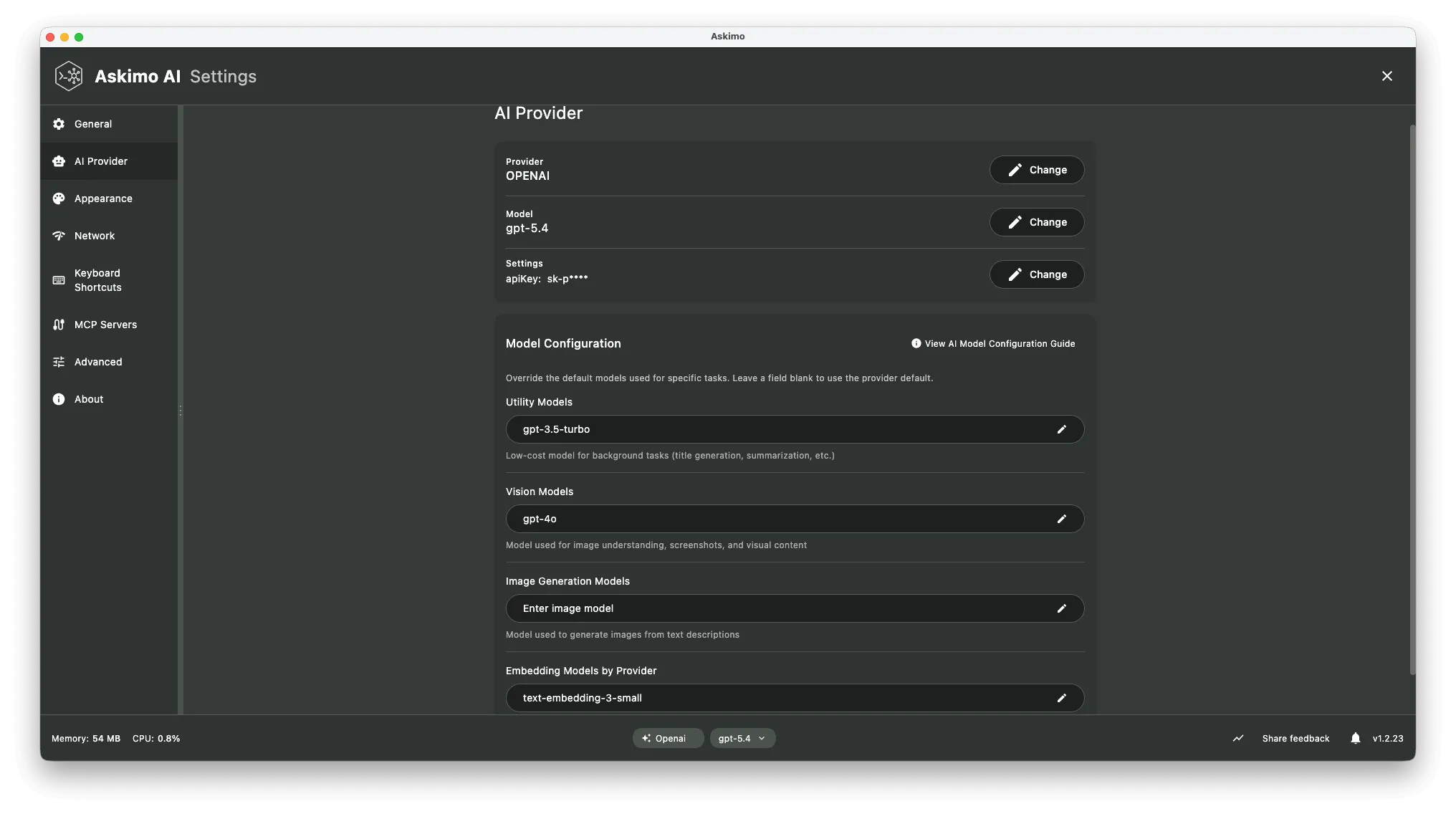
OpenAI Model Configuration
Section titled “OpenAI Model Configuration”| Field | Default | Environment Variable |
|---|---|---|
| Available Models | (auto-detected) | ASKIMO_OPENAI_MODELS |
| Utility Model | ASKIMO_OPENAI_UTILITY_MODEL | |
| Utility Timeout | 45s | ASKIMO_OPENAI_UTILITY_TIMEOUT |
| Embedding Model | text-embedding-3-small | ASKIMO_OPENAI_EMBEDDING_MODEL |
| Vision Model | ASKIMO_OPENAI_VISION_MODEL | |
| Image Model | ASKIMO_OPENAI_IMAGE_MODEL |
Anthropic Claude Model Configuration
Section titled “Anthropic Claude Model Configuration”| Field | Default | Environment Variable |
|---|---|---|
| Available Models | (auto-detected) | ASKIMO_ANTHROPIC_MODELS |
| Utility Model | claude-sonnet-4-6 | ASKIMO_ANTHROPIC_UTILITY_MODEL |
| Utility Timeout | 45s | ASKIMO_ANTHROPIC_UTILITY_TIMEOUT |
| Embedding Model | (none - see note) | ASKIMO_ANTHROPIC_EMBEDDING_MODEL |
| Vision Model | ASKIMO_ANTHROPIC_VISION_MODEL | |
| Image Model | ASKIMO_ANTHROPIC_IMAGE_MODEL |
Google Gemini Model Configuration
Section titled “Google Gemini Model Configuration”| Field | Default | Environment Variable |
|---|---|---|
| Available Models | (auto-detected) | ASKIMO_GEMINI_MODELS |
| Utility Model | ASKIMO_GEMINI_UTILITY_MODEL | |
| Utility Timeout | 45s | ASKIMO_GEMINI_UTILITY_TIMEOUT |
| Embedding Model | ASKIMO_GEMINI_EMBEDDING_MODEL | |
| Vision Model | ASKIMO_GEMINI_VISION_MODEL | |
| Image Model | ASKIMO_GEMINI_IMAGE_MODEL |
xAI Grok Model Configuration
Section titled “xAI Grok Model Configuration”| Field | Default | Environment Variable |
|---|---|---|
| Available Models | (auto-detected) | ASKIMO_XAI_MODELS |
| Utility Model | ASKIMO_XAI_UTILITY_MODEL | |
| Utility Timeout | 45s | ASKIMO_XAI_UTILITY_TIMEOUT |
| Embedding Model | (none - see note) | ASKIMO_XAI_EMBEDDING_MODEL |
| Vision Model | ASKIMO_XAI_VISION_MODEL | |
| Image Model | ASKIMO_XAI_IMAGE_MODEL |
Ollama Model Configuration
Section titled “Ollama Model Configuration”| Field | Default | Environment Variable |
|---|---|---|
| Available Models | (auto-detected) | ASKIMO_OLLAMA_MODELS |
| Utility Model | (uses selected model) | ASKIMO_OLLAMA_UTILITY_MODEL |
| Utility Timeout | 45s | ASKIMO_OLLAMA_UTILITY_TIMEOUT |
| Embedding Model | nomic-embed-text:latest | ASKIMO_OLLAMA_EMBEDDING_MODEL |
| Vision Model | ASKIMO_OLLAMA_VISION_MODEL | |
| Image Model | ASKIMO_OLLAMA_IMAGE_MODEL |
LM Studio Model Configuration
Section titled “LM Studio Model Configuration”| Field | Default | Environment Variable |
|---|---|---|
| Available Models | (auto-detected) | ASKIMO_LMSTUDIO_MODELS |
| Utility Model | (uses selected model) | ASKIMO_LMSTUDIO_UTILITY_MODEL |
| Utility Timeout | 45s | ASKIMO_LMSTUDIO_UTILITY_TIMEOUT |
| Embedding Model | ASKIMO_LMSTUDIO_EMBEDDING_MODEL | |
| Vision Model | ASKIMO_LMSTUDIO_VISION_MODEL | |
| Image Model | ASKIMO_LMSTUDIO_IMAGE_MODEL |
LocalAI Model Configuration
Section titled “LocalAI Model Configuration”| Field | Default | Environment Variable |
|---|---|---|
| Available Models | (auto-detected) | ASKIMO_LOCALAI_MODELS |
| Utility Model | (uses selected model) | ASKIMO_LOCALAI_UTILITY_MODEL |
| Utility Timeout | 45s | ASKIMO_LOCALAI_UTILITY_TIMEOUT |
| Embedding Model | ASKIMO_LOCALAI_EMBEDDING_MODEL | |
| Vision Model | ASKIMO_LOCALAI_VISION_MODEL | |
| Image Model | ASKIMO_LOCALAI_IMAGE_MODEL |
Docker AI Model Configuration
Section titled “Docker AI Model Configuration”| Field | Default | Environment Variable |
|---|---|---|
| Available Models | (auto-detected) | ASKIMO_DOCKER_MODELS |
| Utility Model | (uses selected model) | ASKIMO_DOCKER_UTILITY_MODEL |
| Utility Timeout | 45s | ASKIMO_DOCKER_UTILITY_TIMEOUT |
| Embedding Model | ai/qwen3-embedding:0.6B-F16 | ASKIMO_DOCKER_EMBEDDING_MODEL |
| Vision Model | ASKIMO_DOCKER_VISION_MODEL | |
| Image Model | ASKIMO_DOCKER_IMAGE_MODEL |
Model Types Explained
Section titled “Model Types Explained”Utility Model
Section titled “Utility Model”The utility model handles fast, low-cost background tasks that don’t require the full power of your main chat model:
- Generating chat titles automatically
- Detecting user intent and routing to the correct tool
- Summarizing conversation context
- Running MCP tool classification
Best practice: Choose the smallest model that still produces coherent short text. For cloud providers this is typically a “mini” or “flash” tier model.
Vision Model
Section titled “Vision Model”The vision model is called when you attach an image to a conversation. It must support multimodal (image + text) input.
- Analyzing screenshots and diagrams
- Reading text from images (OCR-style)
- Describing uploaded photos
Image Model
Section titled “Image Model”The image model is used when Askimo generates images from a text prompt.
- Creating illustrations from descriptions
- Generating UI mockups or diagrams on request
Embedding Model
Section titled “Embedding Model”The embedding model converts text into vector representations used for semantic search. It powers:
- RAG (Project Knowledge) - finding relevant document chunks for your question
- Tool vector search - matching your intent to the right MCP tool
Embedding support by provider:
| Provider | Embedding Support | Notes |
|---|---|---|
| OpenAI | ✅ Native | text-embedding-3-small (1536-d), text-embedding-3-large (3072-d) |
| Google Gemini | ✅ Native | gemini-embedding-001 (3072-d) |
| Ollama | ✅ Native | nomic-embed-text (768-d), mxbai-embed-large (1024-d) |
| Docker AI | ✅ Native | ai/qwen3-embedding:0.6B-F16 (1536-d) |
| LM Studio | ✅ Via server | Must load an embedding model in LM Studio |
| LocalAI | ✅ Via server | Configure embedding backend in LocalAI |
| Anthropic Claude | ❌ Not supported | Use another provider for embeddings |
| xAI (Grok) | ❌ Not supported | Use another provider for embeddings |
Troubleshooting
Section titled “Troubleshooting”“Embedding dimension does not match store dimension”
You changed the embedding model after a RAG index was already built. The old index was created with a different vector size. Rebuild the index:
- Go to Settings → RAG
- Select the affected project
- Click Rebuild Index
Utility tasks are slow
Your utility model may be too large. Switch to a smaller, faster model (e.g., gemini-2.5-flash-lite, gpt-4o-mini, claude-haiku-3-5, or a sub-1B local model).
Vision model returns an error for image attachments
The configured vision model does not support multimodal input. Check the provider’s documentation and update the vision model to one that accepts images.
Image generation is not available
Image generation requires provider-side support. Verify that your provider account has access to image generation endpoints and that the image model name is correct.