

MCP (Model Context Protocol) Integration
Ce contenu n’est pas encore disponible dans votre langue.
By default, Askimo answers questions using what it already knows from its training. MCP (Model Context Protocol) extends that by giving the AI the ability to act: to read your files, query a database, call an API, run code, and more, all from within your conversation.
Think of MCP servers as plugins that you connect to Askimo. Each server exposes a set of tools (actions the AI can perform). Once connected, the AI can choose the right tool at the right moment. For example, it can look up a live database record, fetch a web page, or list files in a folder, without you having to copy and paste anything manually.
You set up an MCP instance in Settings → MCP Servers by telling Askimo how to reach a server: what command to run or what URL to call. Askimo starts or connects to the server on demand and makes its tools available during your conversation.
How MCP Works in Askimo
Section titled “How MCP Works in Askimo”graph TD
I1[MCP Instance\ne.g. Personal GitHub]
I2[MCP Instance\ne.g. Production DB]
I3[MCP Instance\ne.g. Local Filesystem]
I1 --> S1[MCP Server Process]
I2 --> S2[MCP Server Process]
I3 --> S3[MCP Server Process]
S1 & S2 & S3 -->|tools exposed to AI| AI[Askimo AI]
Each MCP instance holds a complete set of connection details for one server: the command to run, environment variables, or a URL. Askimo starts or connects to the server when needed and exposes its tools to the AI in your conversation.
Adding an MCP Instance
Section titled “Adding an MCP Instance”MCP instances are managed in Settings → MCP Servers. From there you can add, edit, enable/disable, and delete instances that are available across your projects.
- Click the Settings icon in the sidebar (or press
⌘ ,on macOS /Ctrl ,on Windows & Linux). - Select MCP Servers from the left menu.
- Click the Add MCP Server button.
- Fill in the instance details in the dialog that appears.
- Click Test Connection to verify the server starts and returns tools.
- Click Save to add the instance.
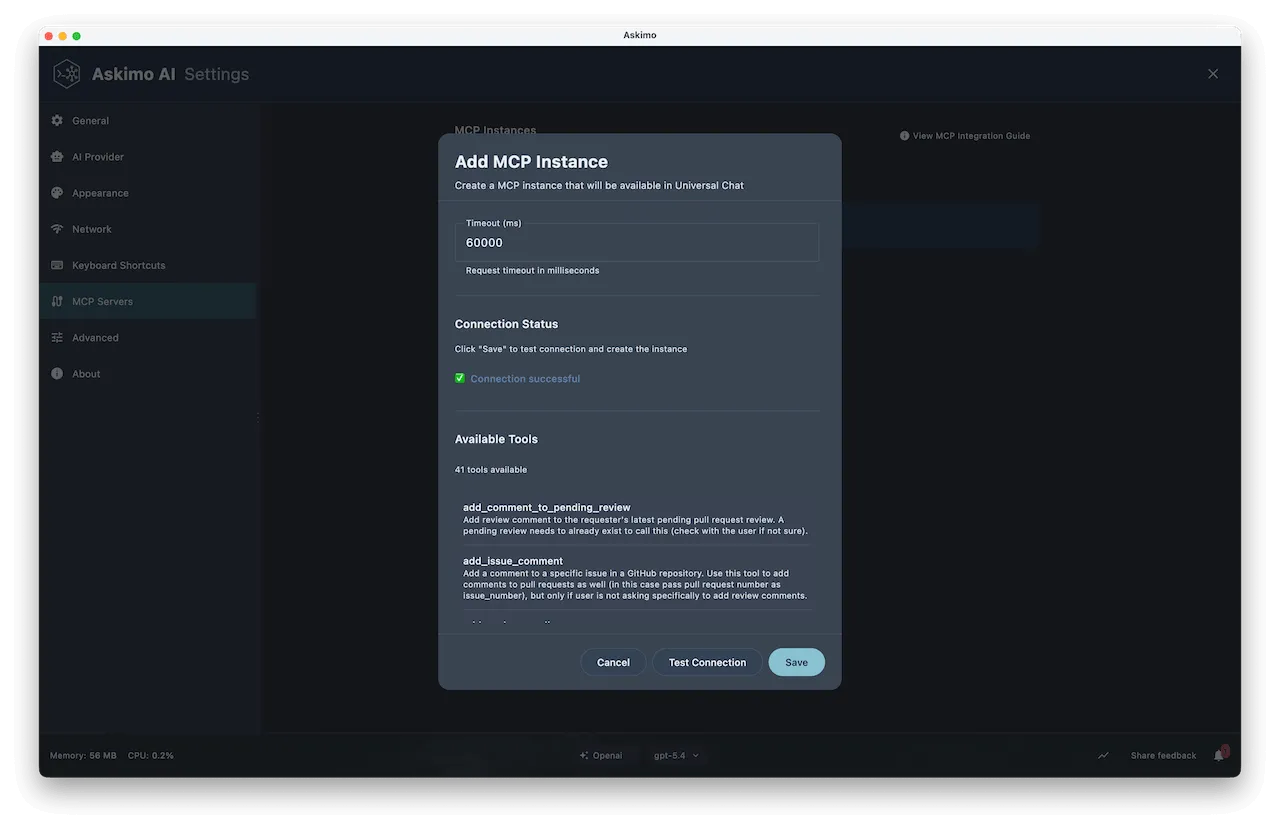
Instance Configuration
Section titled “Instance Configuration”Name and Description
Section titled “Name and Description”| Field | Required | Description |
|---|---|---|
| Instance Name | Yes | A recognisable label for this connection (e.g. Personal GitHub, Production DB) |
| Description | No | A short note about what this instance does |
Transport Type
Section titled “Transport Type”Choose how Askimo connects to the MCP server:
Askimo launches a local process and communicates over stdin/stdout.
| Field | Description | Example |
|---|---|---|
| Command | The executable to run (can include the full command line) | npx -y @modelcontextprotocol/server-postgres |
| Arguments | Additional arguments passed after the command | --readonly |
| Working Directory | Optional directory the process starts in | /home/user/projects |
| Environment Variables | KEY=VALUE pairs (one per line) passed to the server process | DATABASE_URL=postgresql://localhost/mydb |
Askimo connects to a remote or locally running HTTP MCP endpoint.
| Field | Description | Example |
|---|---|---|
| URL | Full URL of the MCP server endpoint | https://my-mcp-server.example.com/mcp |
| Headers | Header-Name=value pairs (one per line) | Authorization=Bearer mytoken |
| Timeout (ms) | Request timeout in milliseconds | 60000 |
Testing the Connection
Section titled “Testing the Connection”Click Test Connection before saving to verify everything is set up correctly. Askimo will:
- Start the server process (Stdio) or contact the URL (HTTP) using the configuration you entered.
- Fetch the list of available tools from the server.
- Display the tools found and show a ✅ success or ❌ failure indicator.
You can save the instance even without testing first, but testing is recommended so you know the tools are reachable.
Include MCP Tools in Your Conversation
Section titled “Include MCP Tools in Your Conversation”Once you have set up MCP instances, you can control which tools are active in any chat conversation using the Tools selector in the chat input bar.
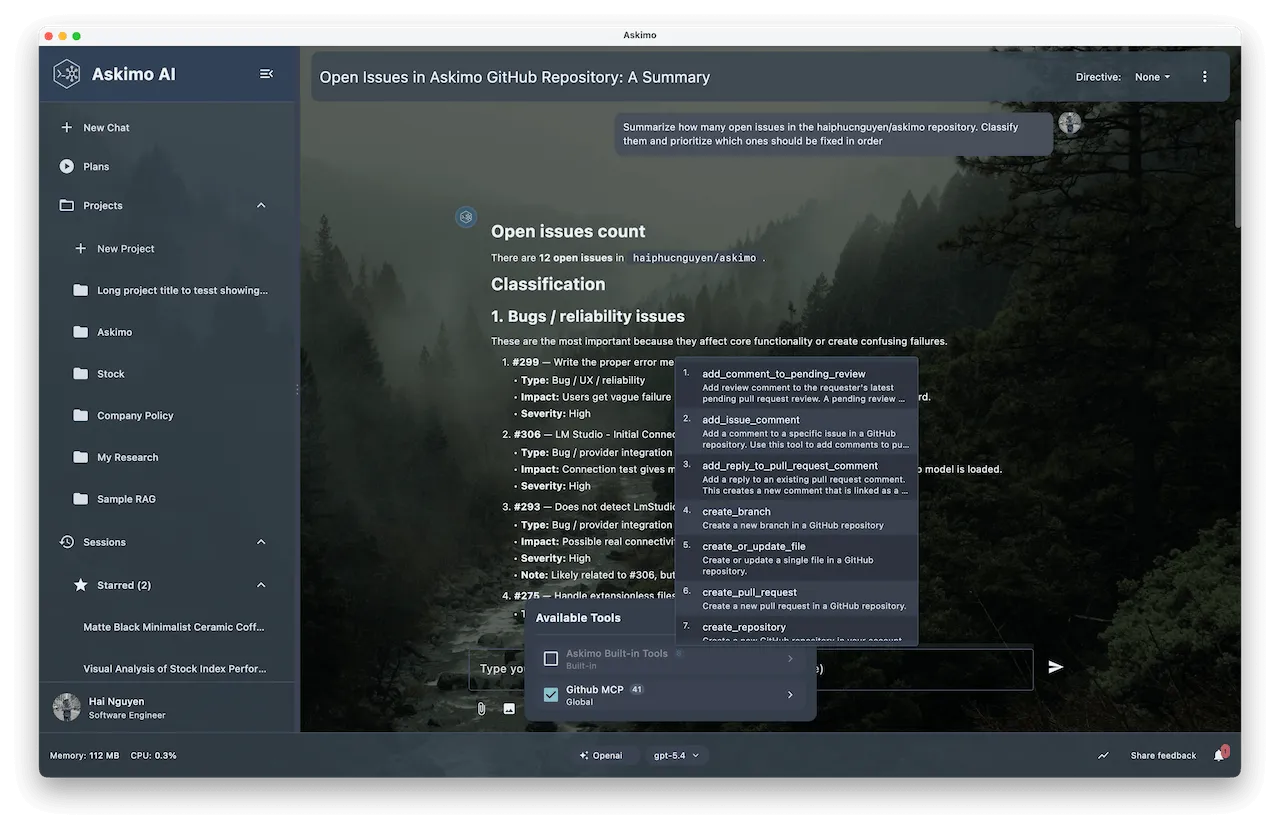
Clicking the Tools button opens a panel listing all available tool sources. You can toggle each one on or off for the current conversation:
- MCP tools (your connected MCP instances) are enabled by default. The AI will use them automatically when relevant to your question.
- Built-in Askimo tools are disabled by default. You can turn them on when you want Askimo to use its own internal capabilities alongside your MCP servers.
Changes to the tool selection apply to the current conversation only and do not affect your global MCP instance settings.
Security: Secret Values
Section titled “Security: Secret Values”Askimo automatically detects sensitive field values based on their name. Any environment variable or header whose name contains key, secret, token, password, or credential is treated as a secret:
- Its value is never written to disk in plain text.
- It is stored in your operating system keychain and retrieved at runtime.
This means a GITHUB_TOKEN or DATABASE_PASSWORD environment variable is handled securely without any extra steps on your part.
Managing Existing Instances
Section titled “Managing Existing Instances”In Settings → MCP Servers you can:
| Action | How |
|---|---|
| View available tools | Click the tools icon on an instance card |
| Enable / disable | Toggle the instance on or off without deleting it |
| Edit | Click the edit icon to update the configuration |
| Delete | Click the delete icon and confirm |
Tool Categories
Section titled “Tool Categories”Askimo classifies MCP tools into categories that help the AI decide when and how to use them:
| Category | Description |
|---|---|
DATABASE | SQL/NoSQL queries and data operations |
NETWORK | HTTP requests and API calls |
FILE_READ | Reading files and directories |
FILE_WRITE | Writing, creating, or deleting files |
VISUALIZE | Charts, graphs, and data visualisation |
EXECUTE | Running code or shell commands |
SEARCH | Full-text and semantic search |
TRANSFORM | Data conversion and processing |
VERSION_CONTROL | Git and VCS operations |
COMMUNICATION | Email, messaging, notifications |
MONITORING | Logging and observability |
OTHER | Unclassified tools |
Troubleshooting
Section titled “Troubleshooting””Failed to connect to MCP server”
Section titled “”Failed to connect to MCP server””- Verify that the binary required by the command is installed and on your
PATH(e.g. runnpx --versionoruvx --versionin a terminal). - Double-check any environment variable names and values, especially tokens or passwords.
- For HTTP servers, confirm the server is running and the URL is reachable.
Tools list is empty after a successful connection
Section titled “Tools list is empty after a successful connection”- Some MCP servers return an empty tool list if authentication fails silently. Double-check any token or API key values in your environment variables or headers.
- Try editing the instance and clicking Test Connection again after correcting the values.
Security Notes
Section titled “Security Notes”- Secret parameters (environment variables or headers whose names contain
key,secret,token,password, orcredential) are stored in your operating system keychain and never written to configuration files. - MCP server processes inherit Askimo’s environment. Avoid granting file-write tools access to sensitive directories.
- For HTTP MCP servers, prefer HTTPS endpoints.
Learn More
Section titled “Learn More”- MCP Integration Guide (blog) - Practical walkthrough: connect GitHub, Time Server, and real-world tool examples with screenshots
- Askimo Features: MCP Tools - Visual overview of what MCP enables in the desktop app